This page shows users how to start the form, choose the correct awards pillar, move through the pages, and submit their application with confidence.
StartSee the first screens before opening the form
3Clear paths for the three award pillars
LiveUses real screenshots from the current project
SimpleFocused on how to apply, not how to write the entry
Start Here
What Users Do First
Every applicant begins with the same opening screens before the form branches into the selected pillar.
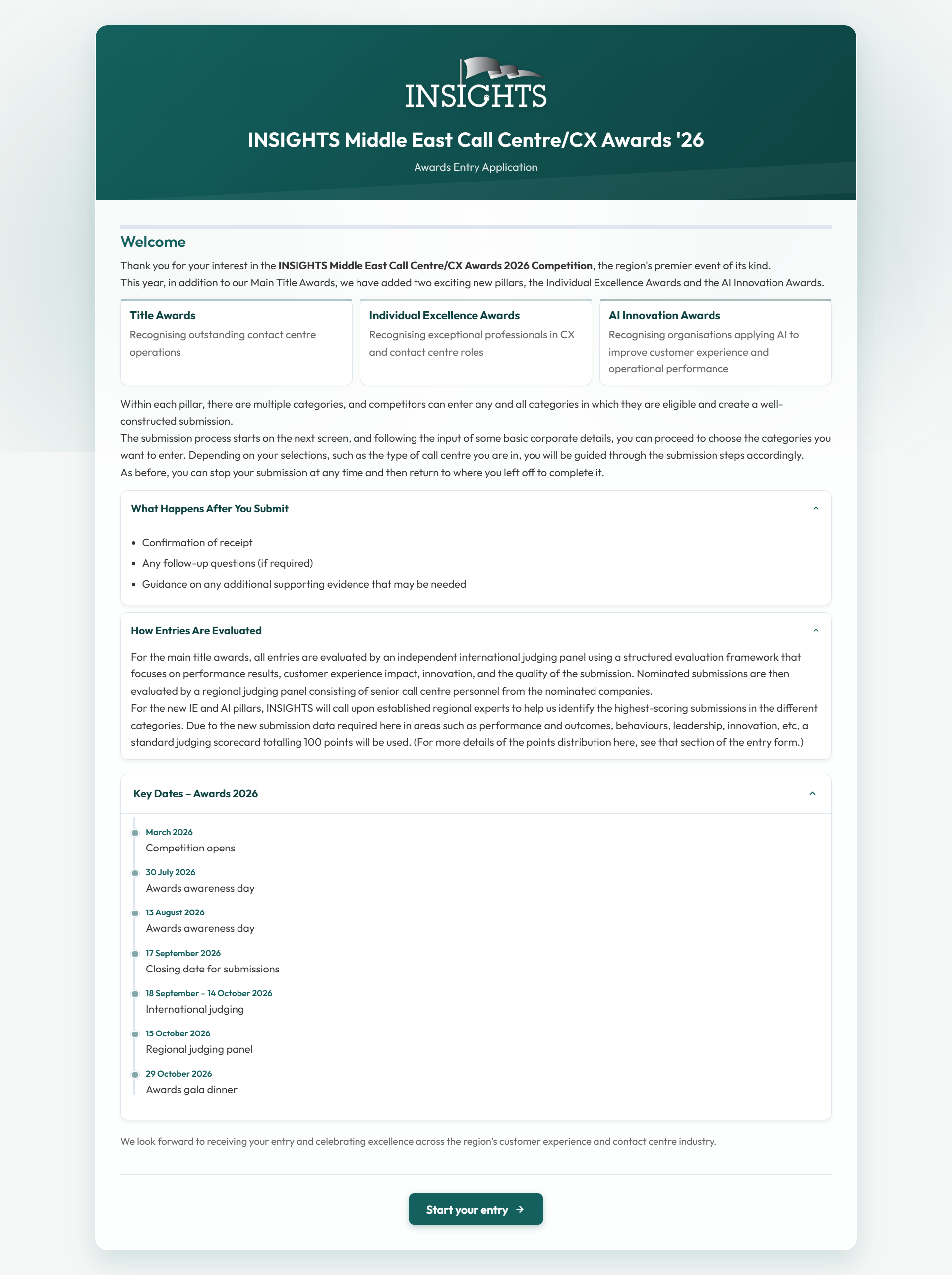
Open The Start PageClick the main start button to begin the application journey.
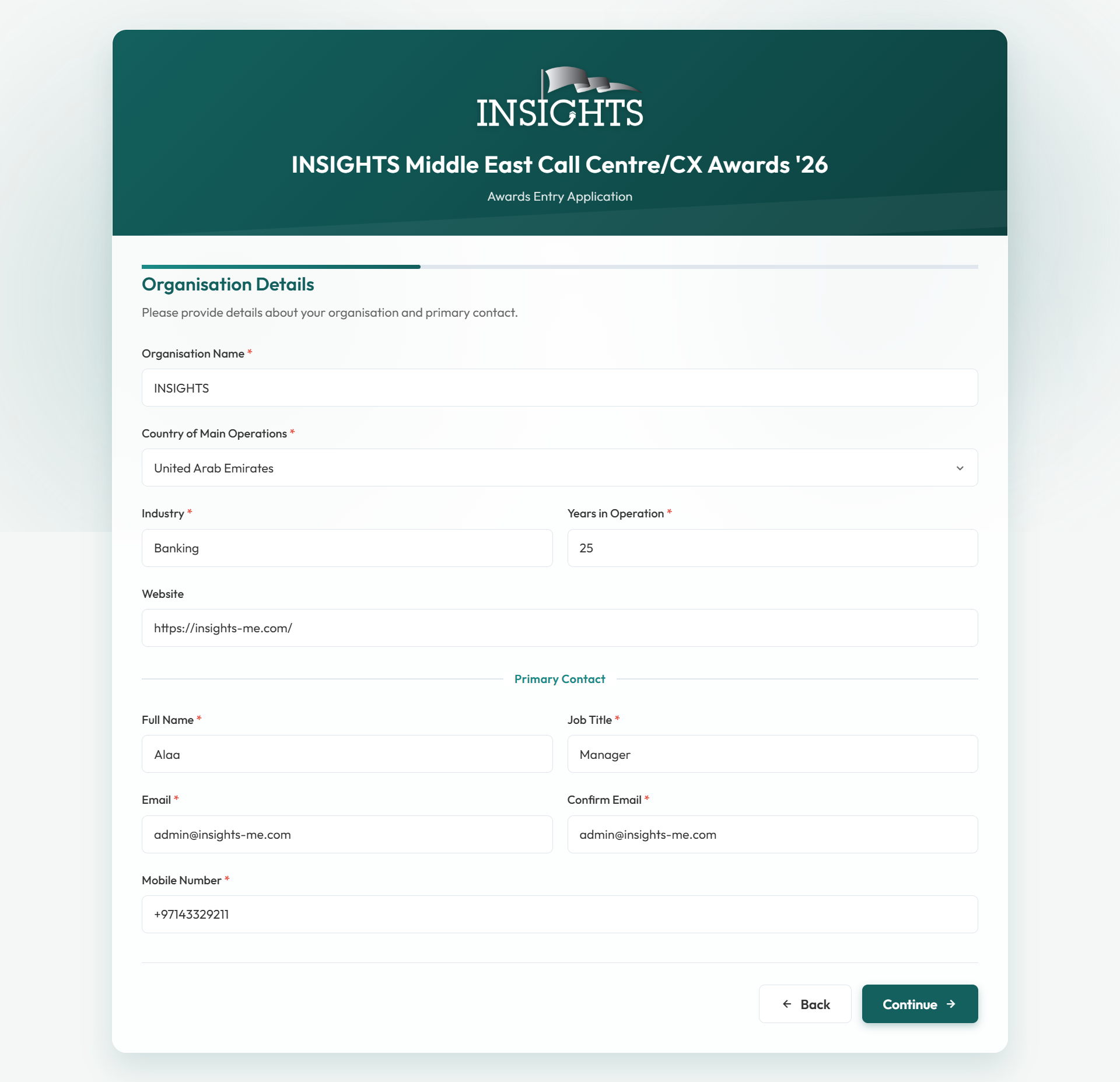
Enter Organisation DetailsFill in the shared organisation and contact information first.
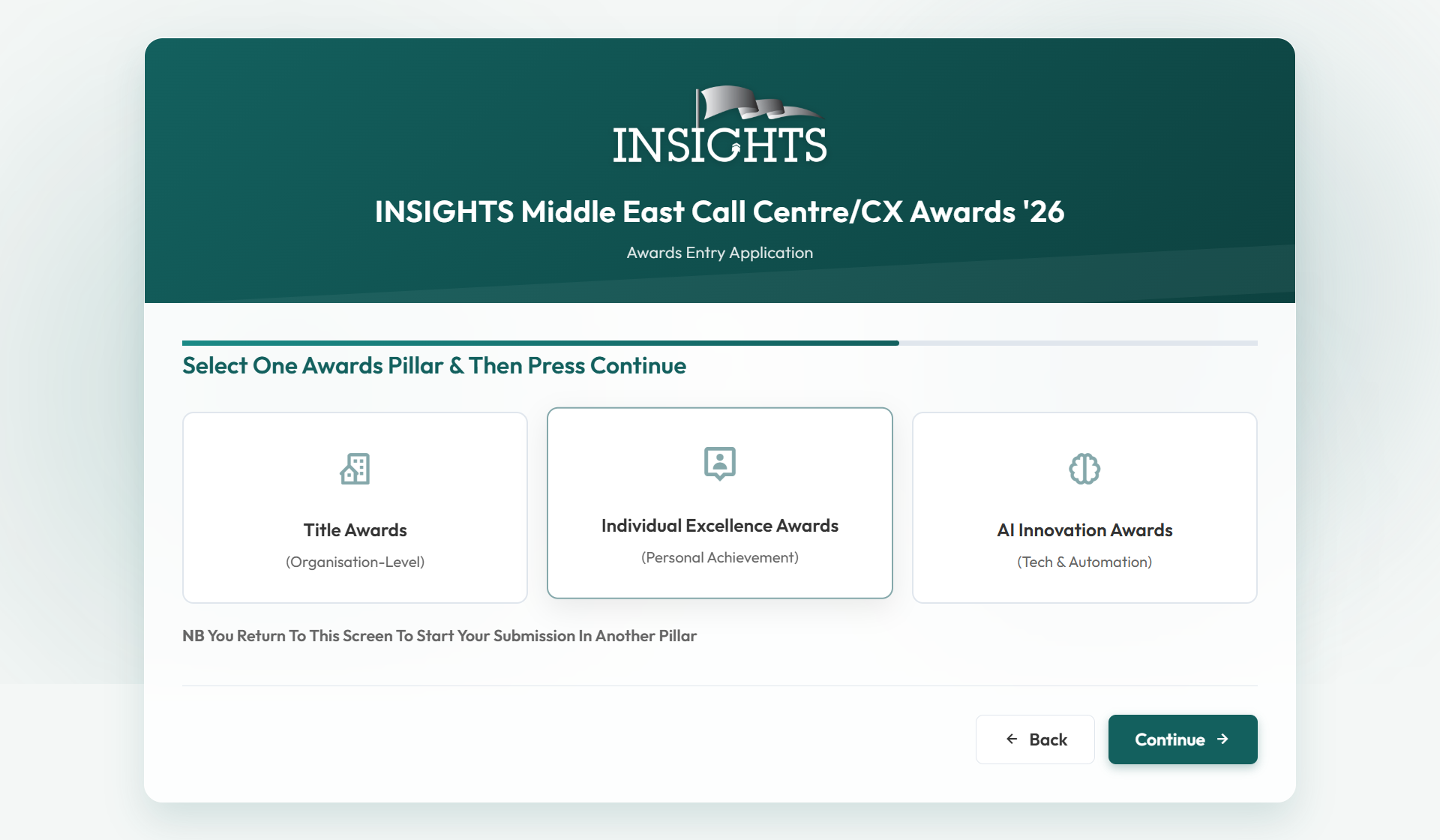
Select One Awards PillarChoose Title Awards, Individual Excellence Awards, or AI Innovation Awards.
Follow The Matching PathThe next screens change depending on the pillar and category selected.
Quick Journey
How The Application Moves
1
Start The FormBegin from the landing screen and move to the shared details page.
2
Complete Shared DetailsEnter the organisation name, country, industry, website, and contact details.
3
Choose The PillarThe form opens the correct route based on the pillar selected.
4
Complete The Pillar PagesFollow the steps shown for your pillar and category until the last page.
5
Upload Files And SubmitAdd supporting files where needed, then review the form and submit.
Saving Your Progress (Draft Save)
The form lets users save progress at any point after the welcome screen. This avoids losing work if the user needs to pause and return later.
Save Draft (Browser)Saves progress in the current browser so the user can continue later on the same device using Resume Saved Draft.
Save Draft (Email Link)If the user has entered a valid email address, Save Draft will also send a secure resume link so they can continue on another device or in another browser.
Resume Saved DraftRestores the latest saved progress from this browser. The button appears only when a saved draft is available.
Resume From EmailOpen the resume link from the draft email to continue exactly where the user left off.
Helpful Tips
1
Save after uploadsUploaded files are stored as part of the submission and the draft saves references to them. Saving after uploading ensures they appear when the user resumes.
2
Check spam/junk for the resume emailIf the resume email is not in the inbox, search for “INSIGHTS Awards 2026 – Your draft has been saved” and mark it as not spam.
3
Keep the link privateThe resume link allows anyone who has it to access the saved draft, so it should not be forwarded publicly.
Opening Screens Users Will See
These are the first shared screens before the form branches into a specific pillar.
Start Page
This is where users begin the application.
Organisation Details
Users complete the shared company and contact information here.
Select One Awards Pillar
Users choose which path they want to apply for.
Title Awards
Choose The Category, Then Follow The Title Awards Steps
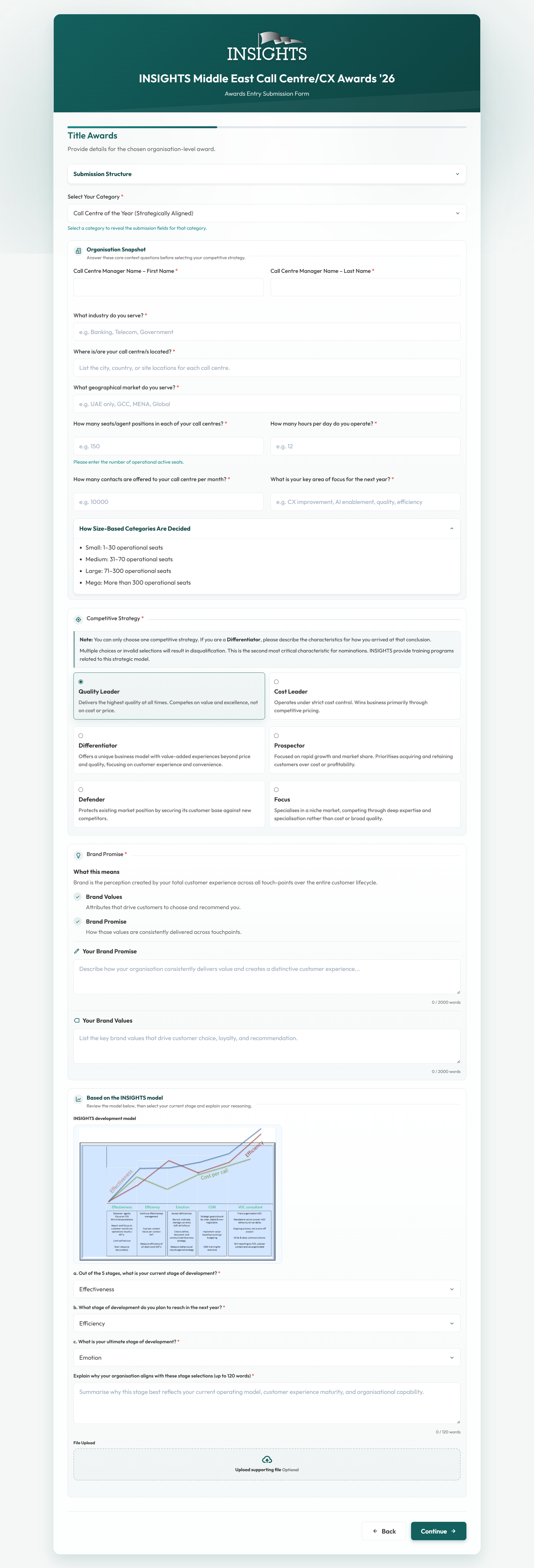
Title Awards are for organisation-level entries. Users first choose one category, then move through the related pages until they reach the final submission stage.
Select One CategoryOrganisation PagesCategory-Based FlowUploads Included
How Users Apply In This Pillar
1
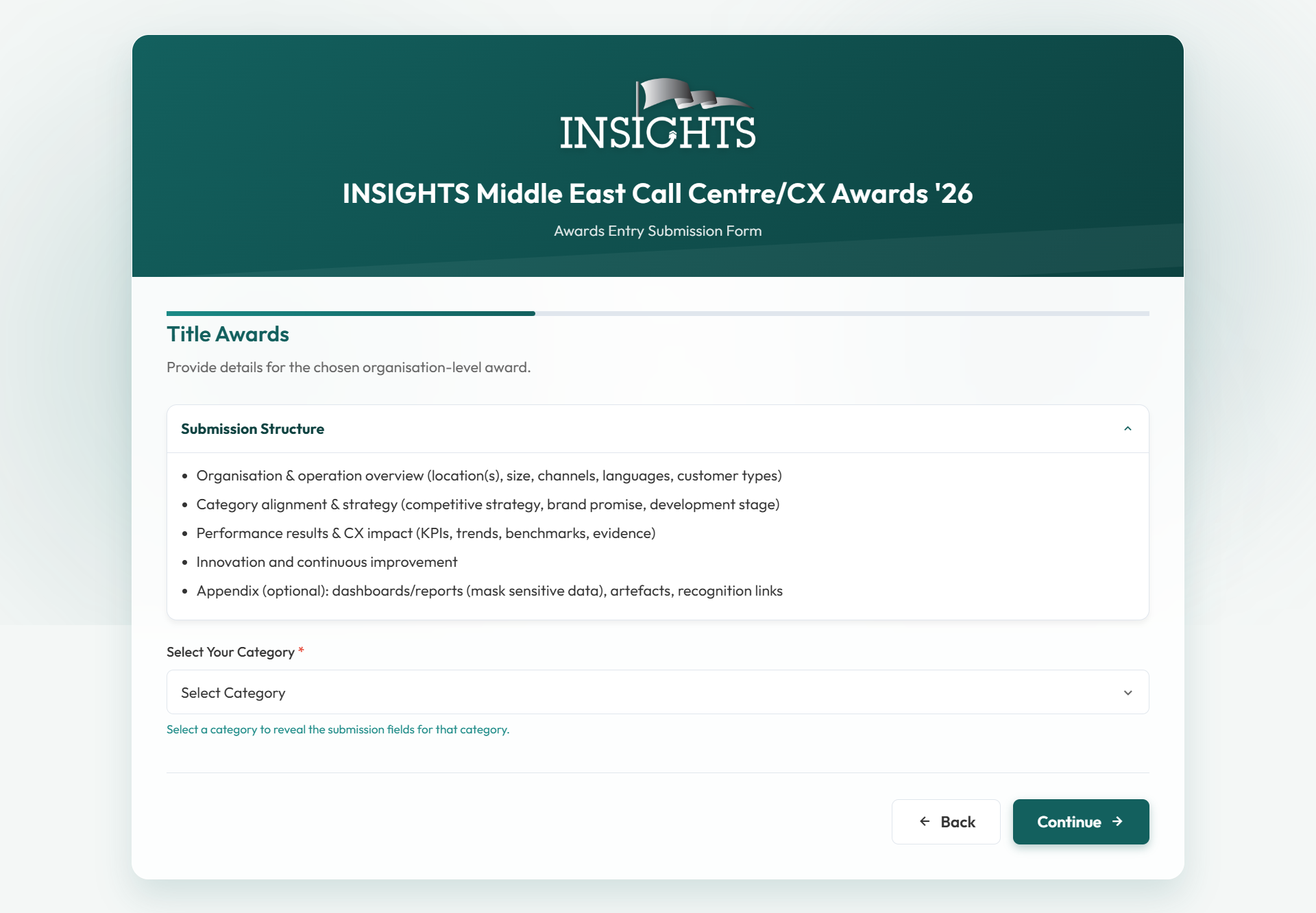
Select Your CategoryChoose the one Title Awards category you want to apply for.
2
Complete The Main Title Awards PageFill in the organisation information and any sections shown for the chosen category.
3
Continue Through The Next PagesUse Continue to move through the pages that belong to your category route.
4
Add Files Where NeededUpload supporting files in the sections that include upload areas.
5
Review And SubmitCheck the required fields, then continue until the form is ready to submit.
Helpful Notes For Users
Category First
Users should choose the correct category first because the next Title Awards pages depend on that selection.
Call Centre Manager Of The Year
If a Captive category is selected, the main Title Awards page includes a yes/no choice asking if the submission should also be considered for Call Centre Manager of The Year. If selected, the submission is treated as applying for both categories.
CX Company Of The Year
This category starts from the same Title Awards entry point, then continues into its own CX-specific pages after the opening page.
CX Manager Of The Year
When CX Company Of The Year is selected, the main Title Awards page includes a yes/no choice asking if the submission should also be considered for CX Manager of The Year. If selected, the submission is treated as applying for both categories.
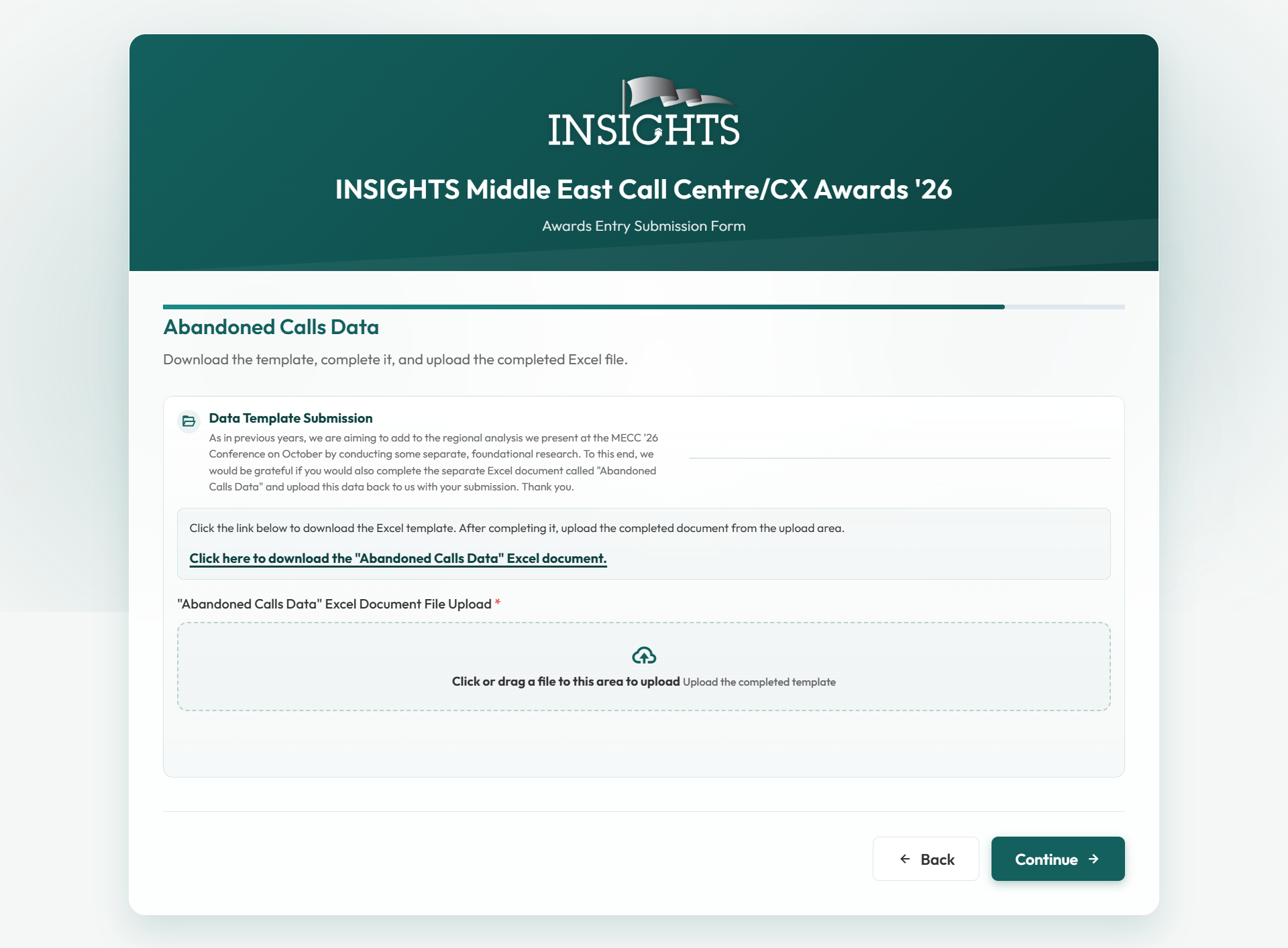
Abandoned Calls Data
If the Abandoned Calls Data page appears, users should complete it before moving to the final submission stage.
Title Awards Screens
These screenshots show the main entry points users see in the Title Awards route.
Select Your Category
Users choose their Title Awards category here.
Main Title Awards Page
After category selection, the user continues through the main application pages.
Abandoned Calls Data
Some routes include this page later in the application flow.
Individual Excellence Awards
Choose Categories, Complete Nominee Details, Then Finish The Form
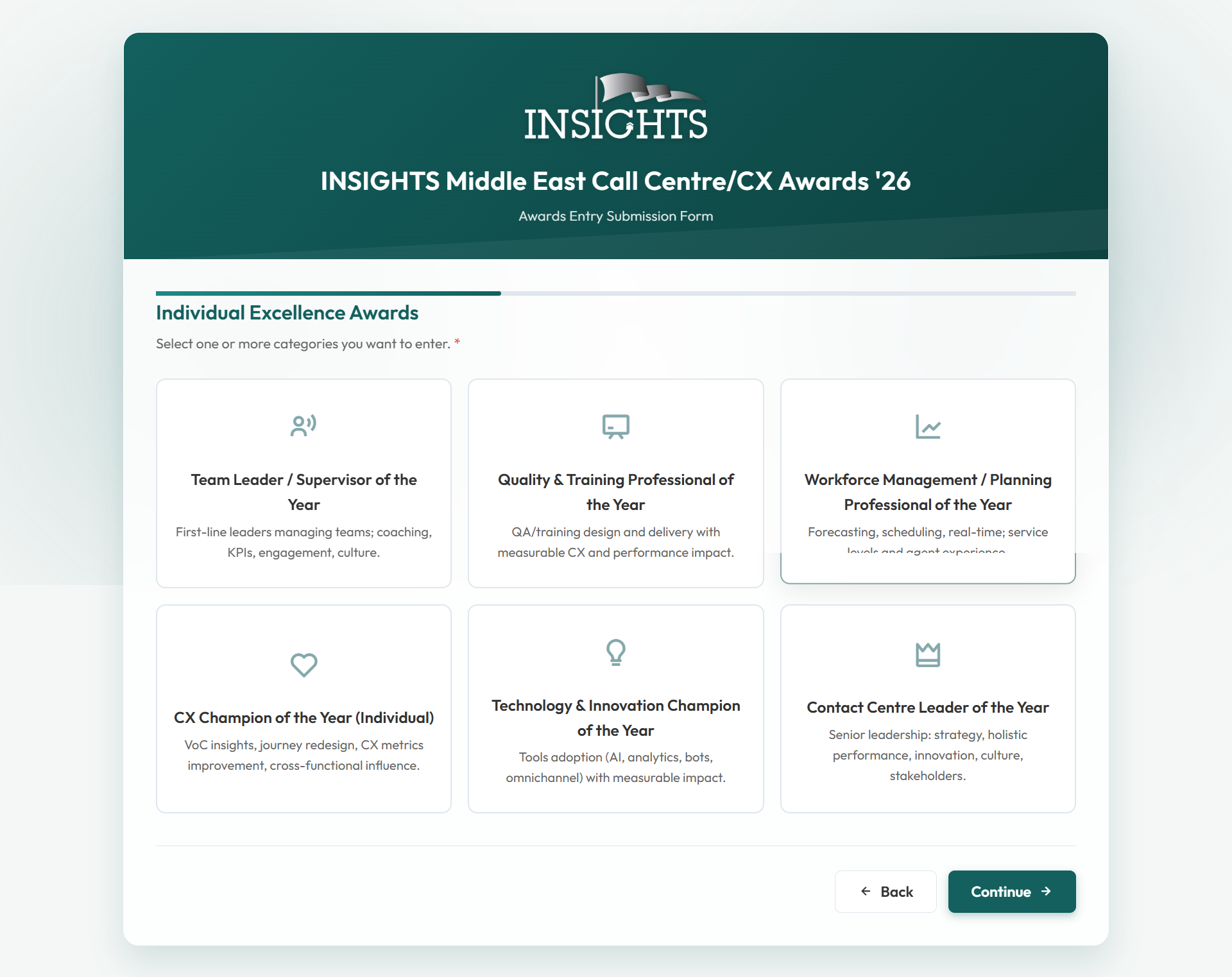
This pillar is for individual applicants. Users can choose one or more categories, then continue through nominee details, achievements, testimonials, and supporting evidence.
Choose One Or MoreNominee DetailsAchievementsSupporting Evidence
How Users Apply In This Pillar
1
Select CategoriesChoose one or more Individual Excellence categories to enter.
2
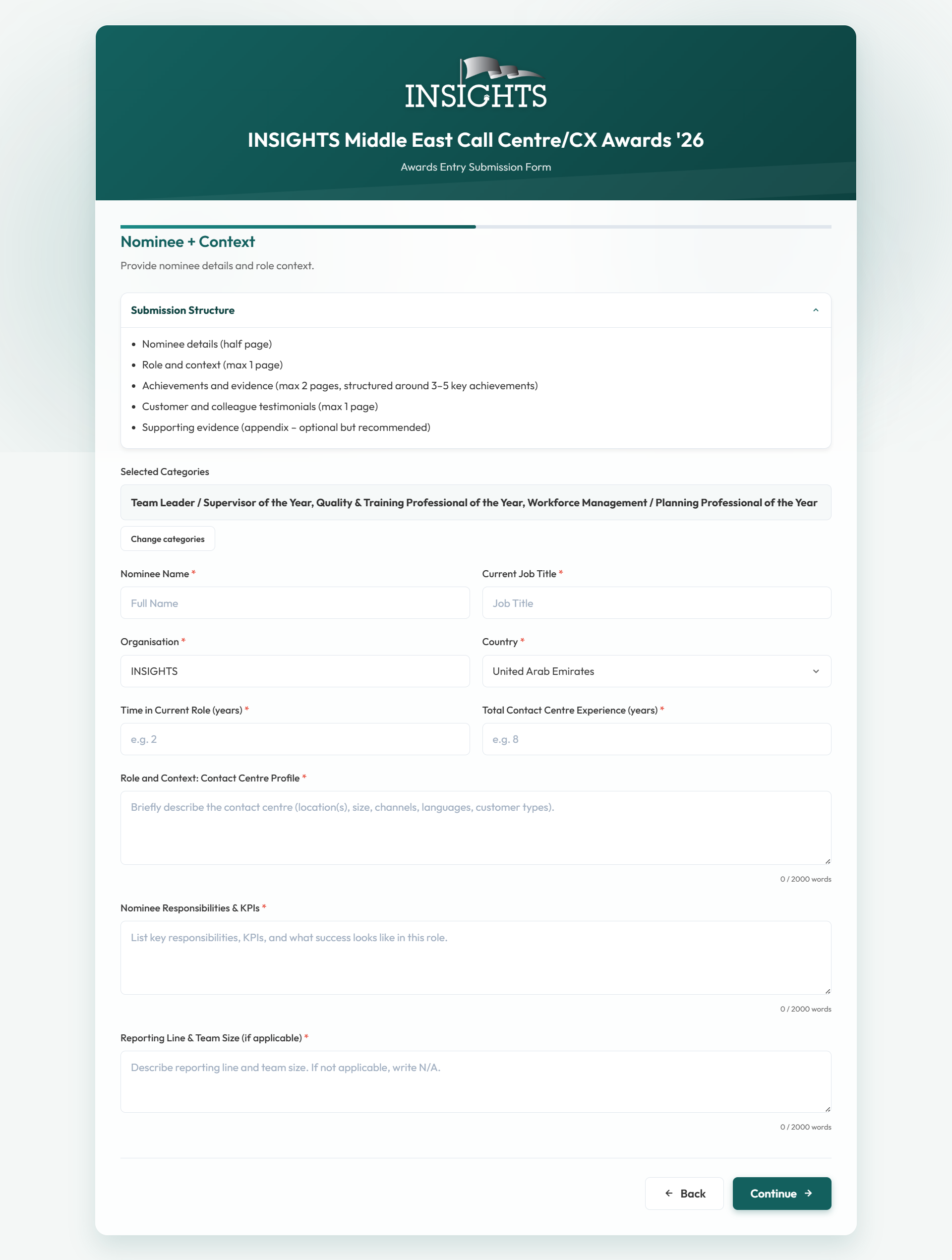
Complete Nominee + ContextFill in the nominee information, role details, and context pages.
3
Finish AchievementsComplete the achievements section, adding the next achievement blocks where needed.
4
Add TestimonialsContinue through the testimonial step before reaching the final evidence area.
5
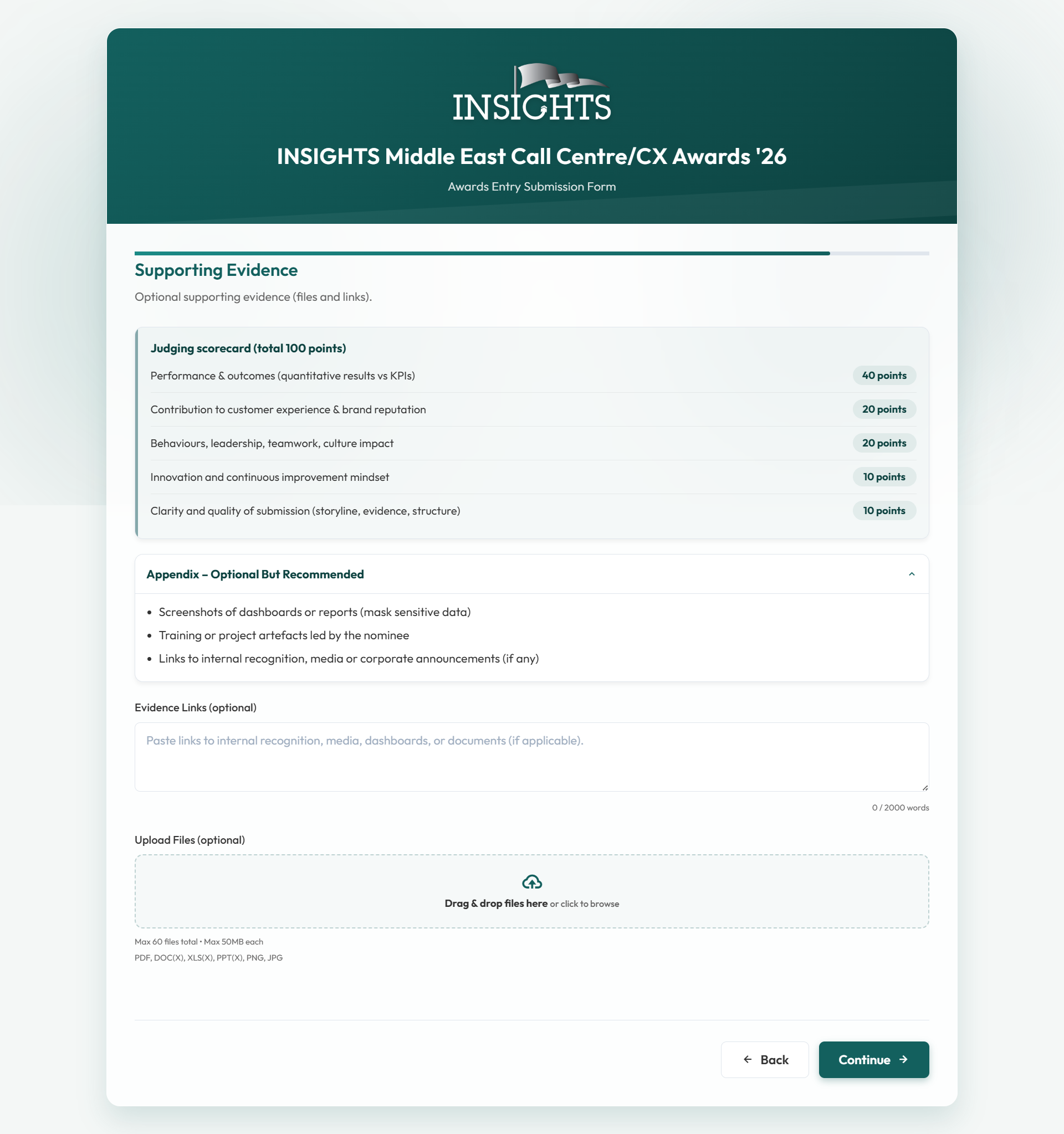
Upload Supporting EvidenceAdd files or links in the final evidence section, then continue to submit.
Helpful Notes For Users
More Than One Category
Users can choose more than one category on the first page of this pillar.
Adding More Achievements
The achievements section starts with the first blocks visible, and users can reveal the next one by clicking Add another achievement.
Final Evidence Page
The last step includes supporting evidence, so users can attach files before submission.
Individual Excellence Screens
These screenshots show the main screens users move through in this pillar.
Select Categories
Users choose one or more categories here.
Nominee + Context
This page collects the nominee and role information.
Supporting Evidence
Users can add final files and links before submission.
AI Innovation Awards
Choose Categories, Add Initiative Details, Then Continue To Outcomes
This pillar is for AI initiatives. Users select one or more categories, complete the initiative details, then continue through the later pages until submission.
Choose One Or MoreInitiative ProfileLater Outcome PagesFinal Submission
How Users Apply In This Pillar
1
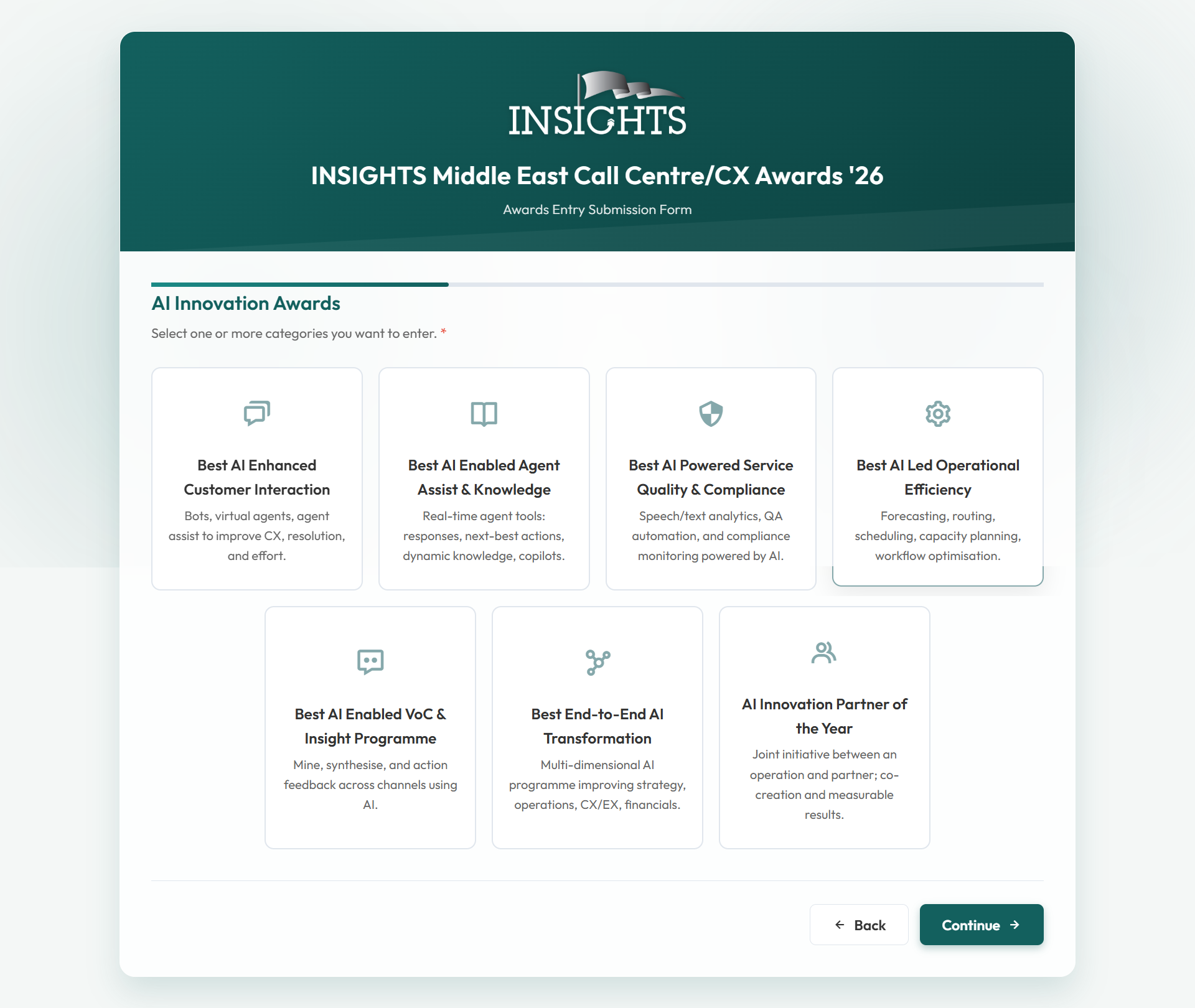
Select CategoriesChoose one or more AI Innovation categories on the first page.
2
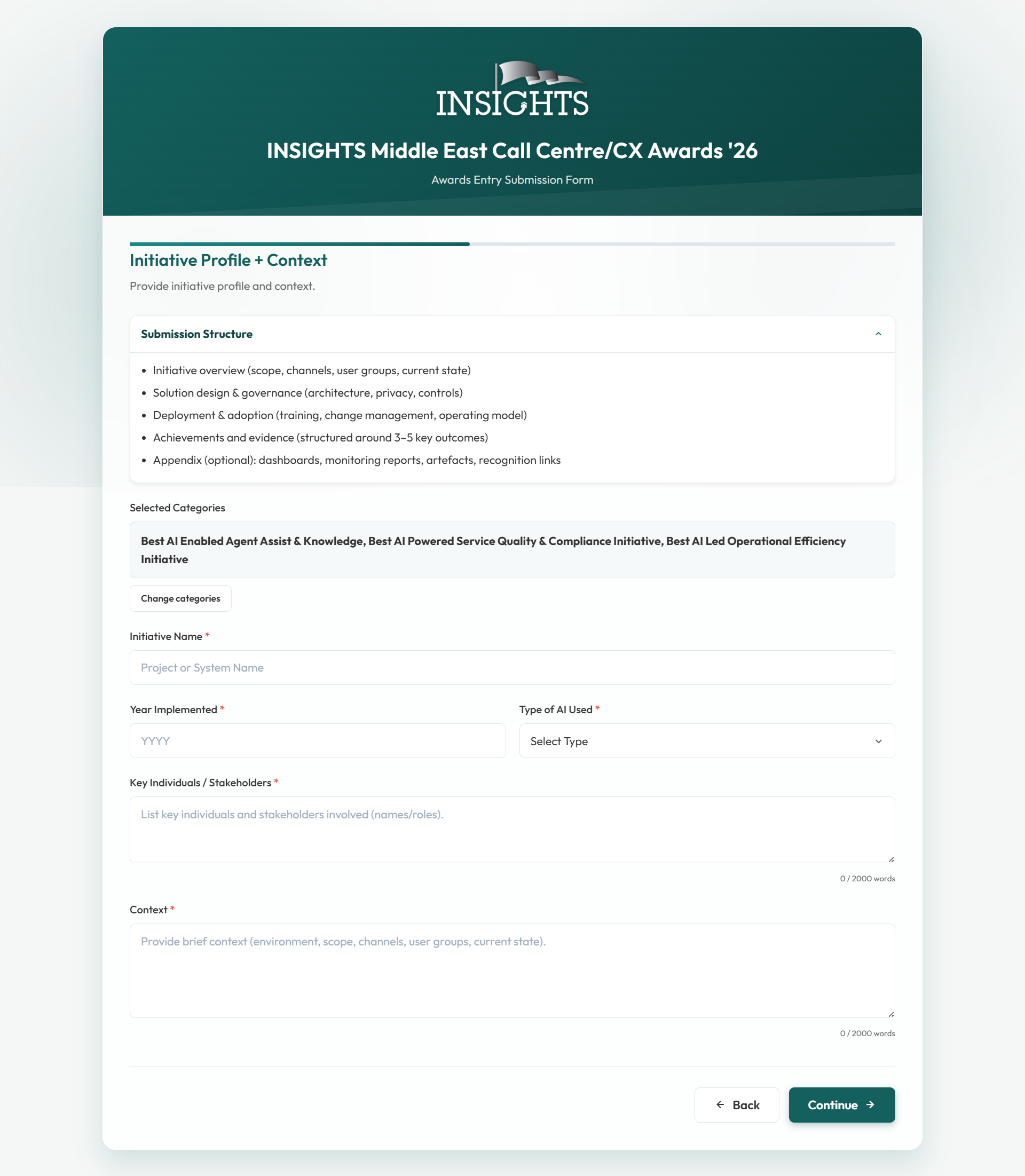
Complete Initiative Profile + ContextFill in the initiative details before moving to the next application pages.
3
Continue Through The AI PagesUse Continue to move through the remaining questions and required sections.
4
Add Files Where NeededUpload supporting files if the later steps include upload areas.
5
Review And SubmitCheck the required fields and continue until the final submission step.
Helpful Notes For Users
More Than One Category
Users can select more than one AI Innovation category on the first page.
Initiative Page First
After category selection, users should expect the Initiative Profile + Context page early in the route.
Continue Through The Remaining Pages
The later pages depend on the flow, so users should simply continue step by step until they reach the final submission area.
AI Innovation Screens
These screenshots show the first main screens users see in this pillar.
Select Categories
Users choose one or more AI Innovation categories here.
Initiative Profile + Context
This is the next key page after category selection.
Simple Applicant Guide
This page is now focused on how users start and move through the form. It stays separate from the more detailed submission-writing guide you copied for later use.